Pro Documentation
Complete guide to all DocVault Pro features.
Pro extends the free plugin. For installation, the shortcode, the Gutenberg block, and general document management, see the main documentation.
Getting Started
Requirements
- WordPress 5.8 or higher
- PHP 7.4 or higher
- DocVault (free) version 1.4.2 or higher, installed and active
- A valid Pro licence
Installation
- Purchase Pro and download the plugin from your account
- Go to Plugins → Add New → Upload Plugin
- Upload the
trilobita-docvault-pro.zipfile and activate - Connect your account when prompted to activate your licence
- All Pro features are unlocked immediately
Pro Settings
Most Pro features work automatically once activated. Features that require configuration have their settings in Documents → Settings under the Pro Features section.
Unlimited Version History
The free plugin keeps up to 5 versions per document, automatically deleting the oldest when a new one is uploaded. With Pro active, this limit is removed. All versions are retained indefinitely.
No configuration is needed. The limit is lifted automatically once Pro is active. You can still manually delete versions, or use the Storage Management tools to prune old versions in bulk.
Smart Similarity Detection
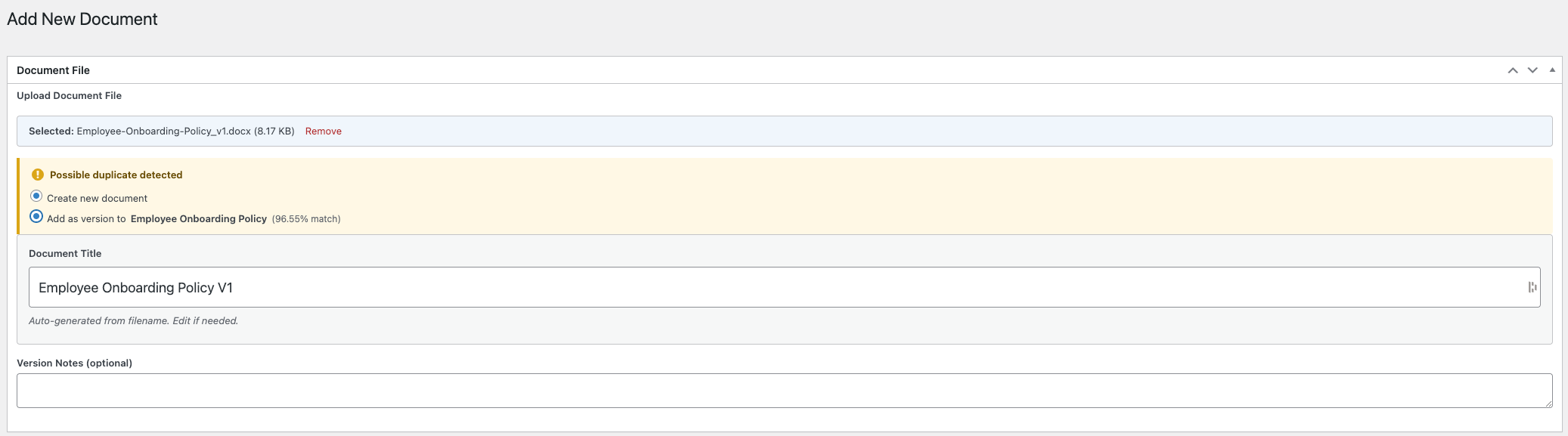
When you upload a file, Pro compares the filename against all existing documents. If a similar document is found, you are shown a comparison and asked to choose how to proceed.
How it works
- Upload a file as normal
- Pro scans existing documents for similar filenames
- If a match is found, you are shown the similar document and given two options
- Add as new version – attaches the file to the existing document as its latest version
- Create separately – creates a new independent document
Detection runs on both standard upload and bulk upload. Files with very different names will not trigger a match.
Role-Based Access Control
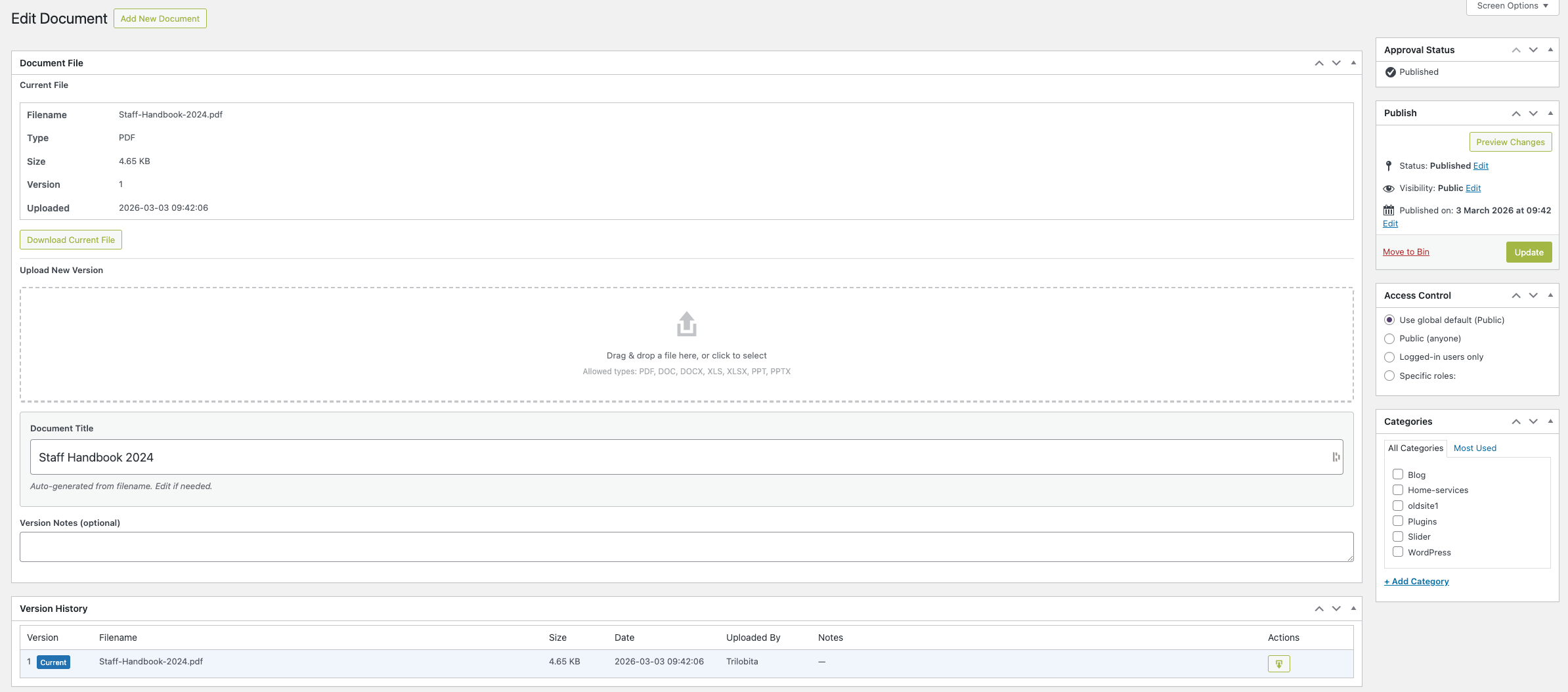
The free plugin restricts documents to Public or Logged-in users. Pro adds a third option: Specific roles, allowing you to restrict a document to one or more WordPress user roles.
Setting role-based access on a document
- Open the document in the editor
- Find the Access Control metabox
- Set access type to Specific roles
- Check the roles that should have access
- Save the document
Users not in a permitted role will see an access denied message when attempting to download. You can also set Specific roles as the global default in Documents → Settings.
Audit Trail
The audit trail records every significant action on your documents. Access the log at Documents → Audit Log.
Enabling
Go to Documents → Settings and turn on Enable audit logging. Download logging is off by default – enable Log downloads separately if you need downloads tracked.
Events tracked
- Document created, updated, deleted
- Version uploaded, restored, deleted
- Document downloaded (when Log downloads is enabled)
- Access permissions changed
- Documents merged
- Approval workflow events (submitted, approved, rejected)
Filtering and export
- Filter by date range, event type, user, or document title
- Click Export CSV to download the filtered results
- Exports are capped at 10,000 rows – use the date filter to export in smaller batches if your log is larger
Retention
Log entries are automatically deleted after 90 days by default. Change the retention period in Documents → Settings. Set it to Forever if you need to retain logs indefinitely for compliance.
Download Analytics
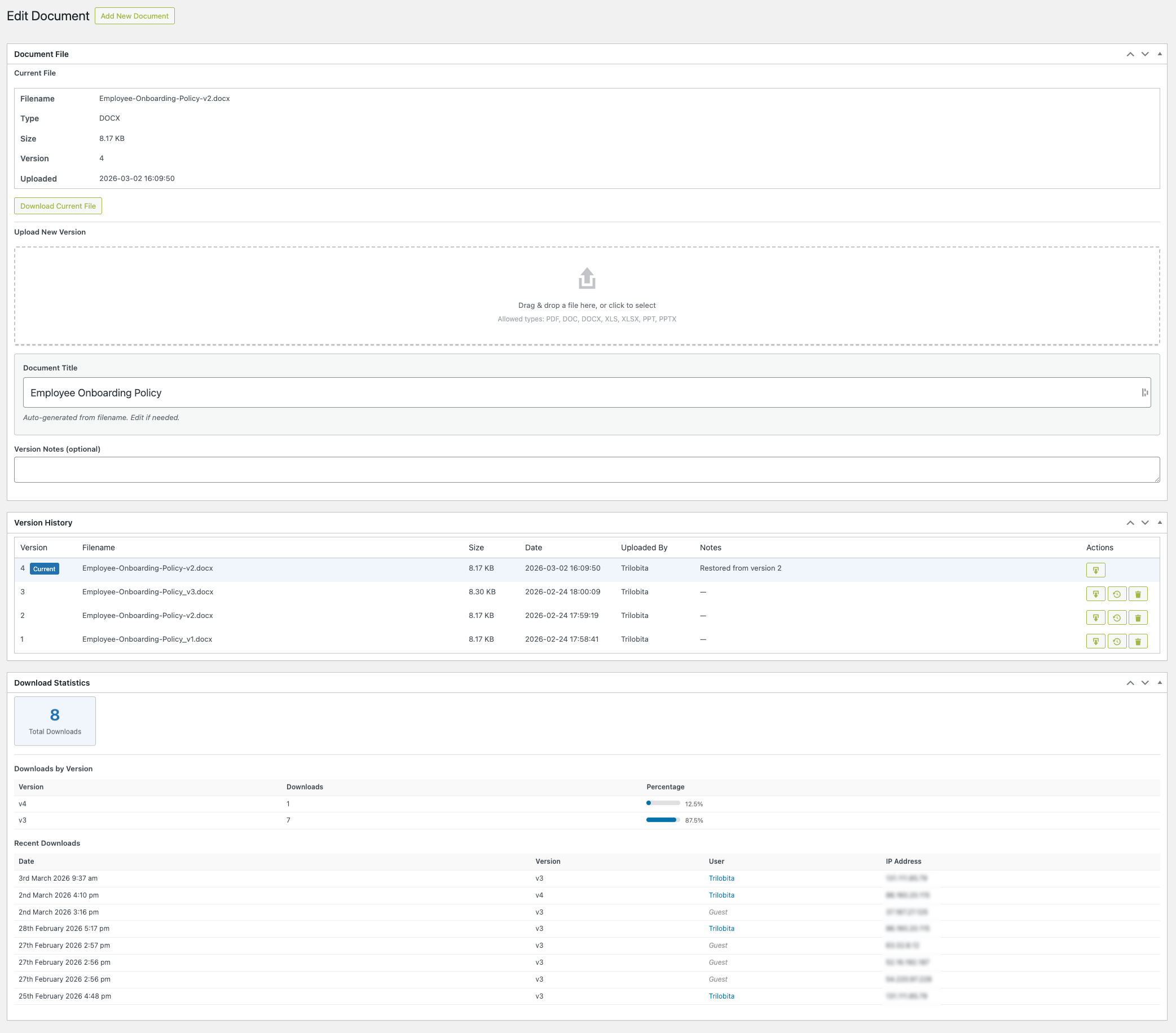
Each document’s edit screen includes a Download Analytics metabox showing detailed download statistics. No configuration is needed – analytics are recorded automatically from the moment Pro is activated.
Downloads by version
Progress bars show how many times each version has been downloaded, with percentage distribution across all versions.
Recent downloads
A table showing the last 10 downloads, including:
- Date and time
- Version downloaded
- Username (or Guest for non-logged-in users)
- IP address
Email Notifications
Pro can send email alerts when document events occur. Configure notifications at Documents → Settings under the Pro Features section.
Available events
- Document uploaded
- Document updated
- Document deleted
- Document downloaded
- Document submitted for approval
- Document approved or rejected
To prevent notification floods during bulk operations, at most one notification is sent per document per event type within any 5-minute window.
Emails are sent using WordPress’s standard mail function. If notifications are not being delivered, install an SMTP plugin such as WP Mail SMTP.
Document Approval Workflow
Require documents to be reviewed and approved before publishing. Useful for compliance, quality control, or editorial workflows.
Enabling
- Go to Documents → Settings
- Enable Approval workflow in the Pro Features section
- Select which role can approve documents (Administrator or Editor)
- Save settings
Author flow
- Save a document as a draft
- Click Submit for Approval in the document editor
- Document status changes to Pending
- The approver receives an email notification (if email notifications are enabled)
Approver flow
- Pending documents appear in the document list with a Pending badge
- Open the document in the editor
- Click Approve to publish or Reject to return it to draft
- The author is notified of the decision by email
Pending documents are not publicly accessible until approved. The Submit for Approval button only appears on documents in draft status – published documents cannot be re-submitted.
Bulk Upload
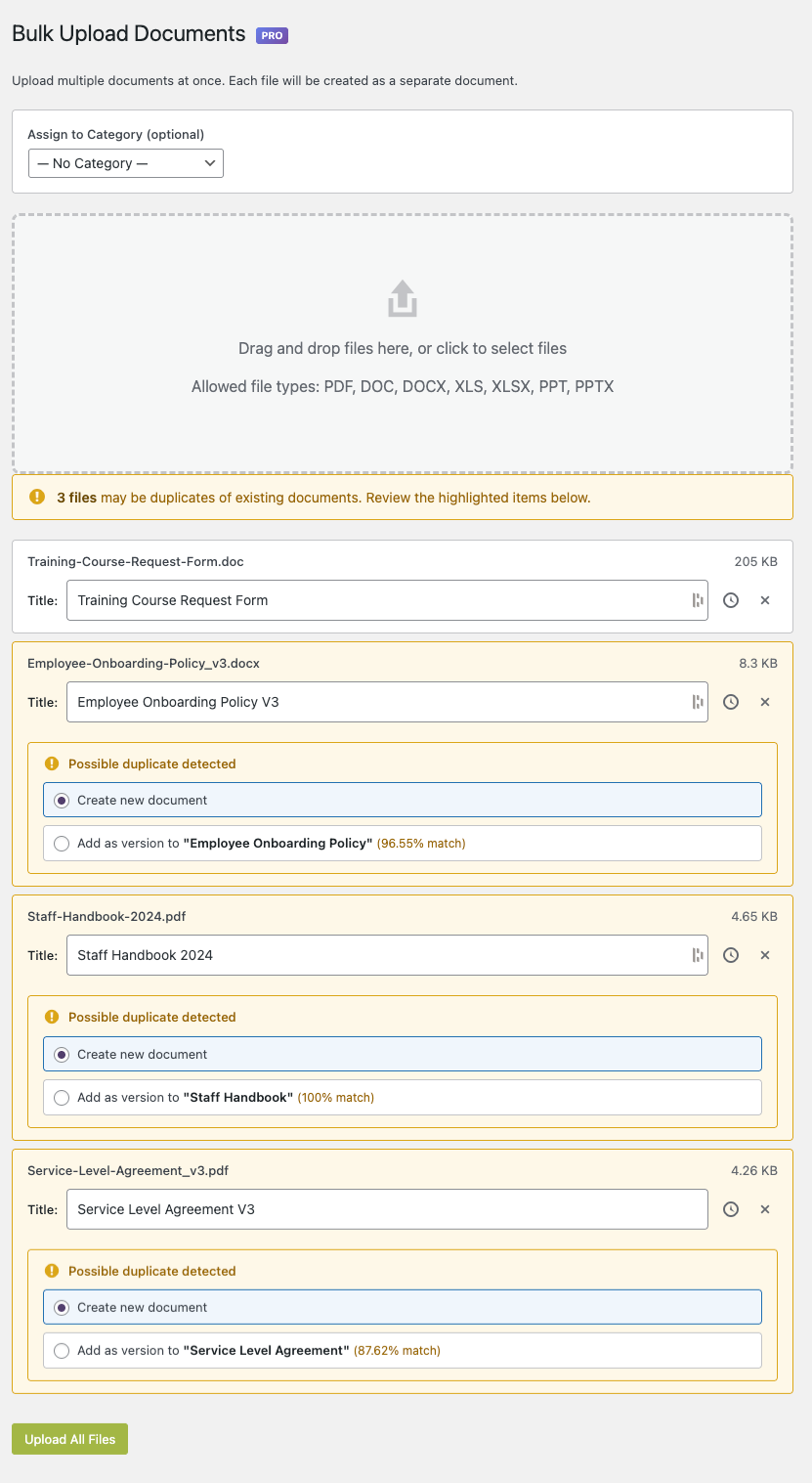
Upload multiple documents at once. Access at Documents → Bulk Upload.
Upload up to 20 documents at once. For larger collections, upload in multiple batches.
- Drag and drop multiple files onto the upload area, or click to browse
- Pro checks each file against existing documents using similarity detection
- Files with potential matches are highlighted – choose to add as a new version or create a new document
- Files without matches are queued as new documents with titles generated from their filenames
- Click Upload All to process the queue
Duplicate Detection
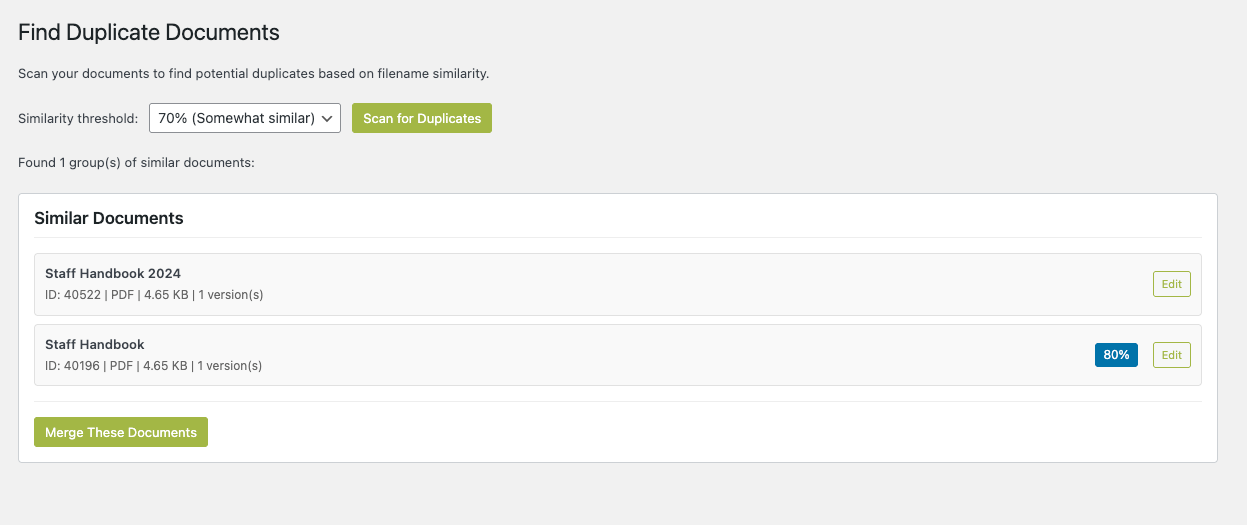
Find and merge duplicate documents to keep your library clean. Access at Documents → Find Duplicates. This page requires Editor or Administrator access.
- Click Scan for Duplicates
- Review detected duplicates grouped by similarity
- Click a document to review its content before merging
- Select which document to keep as the primary
- Click Merge – versions are combined and old download links redirect to the primary document
Note: Merging moves duplicates to the trash. Review carefully before merging – permanently deleted documents cannot be recovered.
Storage Management
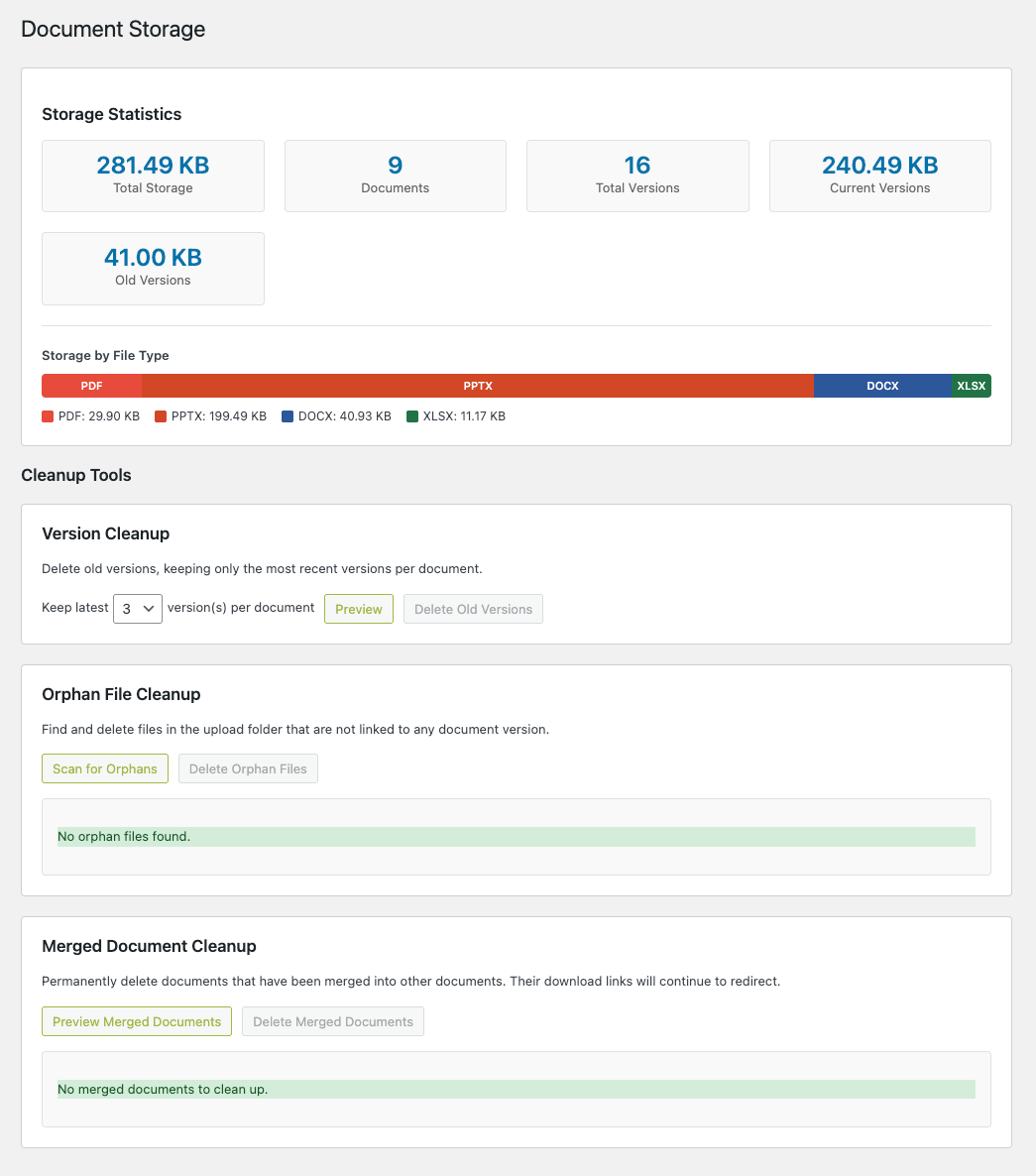
Monitor and optimise your document storage. Access at Documents → Storage.
Orphan file cleanup
Finds files in the upload directory that are no longer attached to any document. This can happen after migrations or if documents were deleted without removing the underlying file. Review the list carefully before deleting – deletion is permanent.
Version pruning
Removes old versions beyond a number you specify. For example, setting keep to 3 deletes all but the 3 most recent versions of every document. The current version is always kept. The minimum value is 1.
Cleanup merged
Permanently removes documents that have previously been merged into others and are sitting in the trash.
Dashboard Widget
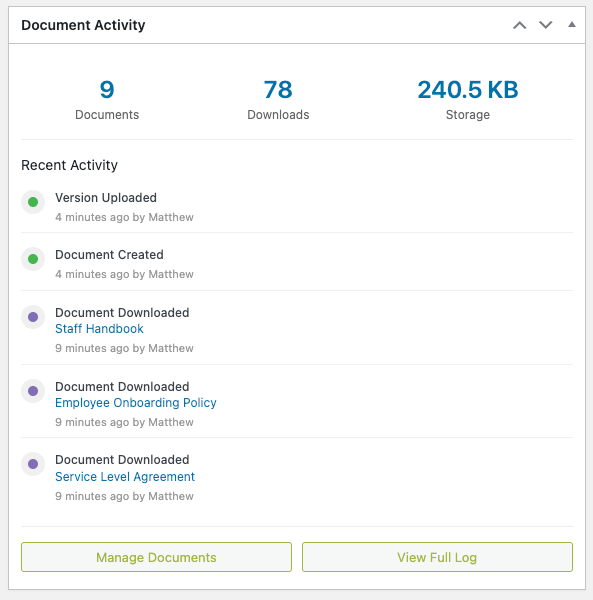
A document statistics widget is added to the WordPress dashboard automatically when Pro is active. No configuration is needed.
- Total document count
- Total downloads
- Total storage used
- Recent activity from the audit log
Quick links from the widget take you directly to document management and the full audit log.
Frontend Display
Block Layout Options
Pro adds two additional display layouts to the DocVault Gutenberg block. Select a DocVault block in the editor and open the Display Options panel in the block inspector sidebar.
Card layout
A rich card display featuring a large file icon, document title, excerpt, file type badge, file size, date, download count, and a prominent download button. Ideal for showcasing important documents or dedicated downloads pages.
Button layout
A compact inline button with file icon, document title, and file type and size. Perfect for embedding download links within post content without disrupting the reading flow.
The free plugin’s Full and Minimal layouts remain available alongside the Pro layouts.
Document Table Shortcode
Advanced Frontend Filters
Pro extends the free shortcode with additional filtering, sorting, and display options for larger document libraries.
Title
Type
Size
Date
Actions
Valuation Report
PDF
133.87 KB
1st April 2026
View
Download
Staff Handbook 2024
PDF
4.65 KB
1st April 2026
View
Download
Service Level Agreement 2024
PDF
4.25 KB
1st April 2026
View
Download
Employee Onboarding Policy V2
DOCX
8.17 KB
30th March 2026
Download
Employee Onboarding Policy
DOCX
8.17 KB
1st April 2026
Download
Q4 2024 Business Review
—
—
24th February 2026
—
Employee Onboarding Policy
—
—
24th February 2026
—
Q3 2024 Board Meeting Minutes
—
—
24th February 2026
—
Project Timeline Tracker
—
—
24th February 2026
—
Service Level Agreement
—
—
24th February 2026
—
New Product Launch Strategy
—
—
24th February 2026
—
Staff Handbook
—
—
21st March 2024
—
Annual Budget 2024
—
—
7th January 2024
—
| Parameter | Description | Default |
|---|---|---|
date_from | Show documents uploaded on or after this date (YYYY-MM-DD) | (none) |
date_to | Show documents uploaded on or before this date (YYYY-MM-DD) | (none) |
types | Filter by multiple file types (comma-separated), e.g. pdf,docx,xlsx | (none) |
min_downloads | Only show documents with at least this many downloads | 0 |
orderby | Includes downloads in addition to free options (date, title, size) | date |
columns | Add downloads and version columns in table output | title,type,size,date |
Examples
[trdv_list types="pdf,docx" min_downloads="10" orderby="downloads" order="DESC"]

[trdv_list date_from="2026-01-01" date_to="2026-12-31" columns="title,version,downloads,date"]
Need Help?
Can’t find what you’re looking for? Pro customers receive priority email support.