DocVault Documentation
Learn how to use DocVault.
This documentation covers the free plugin. Where Pro adds extra capability, you’ll see a short note linking to the relevant Pro documentation.
Watch the overview

Getting Started
Installation
- Download from WordPress.org or search “DocVault” in Plugins → Add New
- Activate the plugin
- Go to Documents in the admin sidebar
- Start uploading documents
Requirements
- WordPress 5.8 or higher
- PHP 7.4 or higher
Supported File Types
PDF, DOC, DOCX, XLS, XLSX, PPT, PPTX, ODT, ODS, ODP, RTF, CSV, TXT
Uploading Documents
Adding a New Document
- Go to Documents → Add New
- Drag and drop a file onto the upload area, or click to browse
- The document title is auto-generated from the filename (you can edit it)
- Optionally add version notes to describe this upload
- Assign categories if desired
- Click Publish
Uploading a New Version
To add a new version of an existing document:
- Go to Documents and click on the document
- In the Upload New Version area, drag and drop the updated file
- Add version notes (optional but recommended)
- Click Update
The free version keeps up to 5 versions per document. When you upload a 6th version, the oldest is automatically removed.
Organising Documents
Categories and Tags
Documents have their own Categories (hierarchical) and Tags (flat). You can switch to WordPress’s built-in post categories in Documents → Settings. On the frontend, filter the list with [trdv_list category="slug"] or [trdv_list tag="slug"], or let visitors choose with [trdv_list show_category_filter="true" show_tag_filter="true"].
Descriptions
Add an optional description in the Document File box when editing a document. In the document list, a small toggle next to the title expands the description. In the Document block, it appears below the file info (use the Show description toggle to hide it).
Manual Sort Order
Drag the handle in the Documents list to put documents in a custom order. The order is saved immediately. Show it on the frontend with [trdv_list orderby="menu_order"].
Expiry Dates
Set an optional date in the Expiry Date box on any document. After that date the document is hidden from the frontend document list, the Query Loop block, and the REST API, and its download and view links stop working. Administrators and the document’s author can still download it.
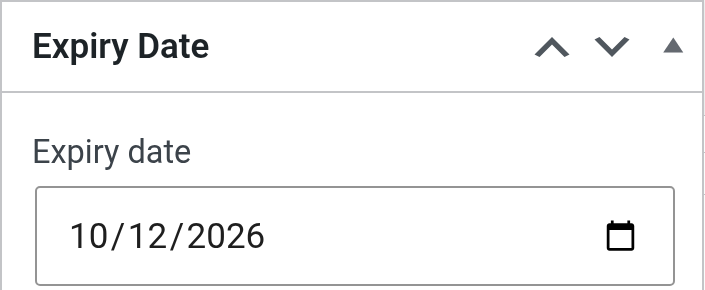
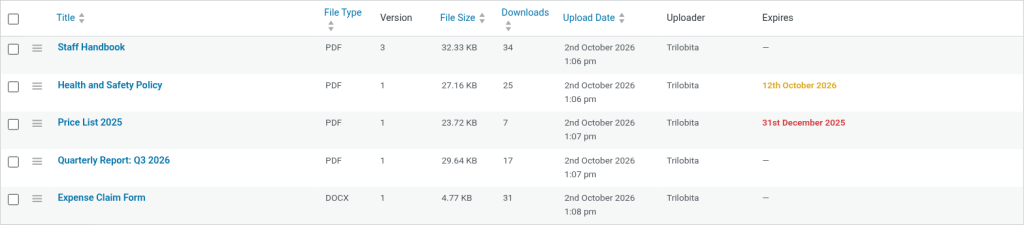
The Expires column in the Documents list shows documents expiring within 30 days in amber and expired documents in red. To include expired documents in a frontend list, use [trdv_list show_expired="true"].
Version History
Every document maintains a version history. From the Edit Document screen, you can:
- Download any previous version
- Restore a previous version (makes it the current version)
- Delete a version from history
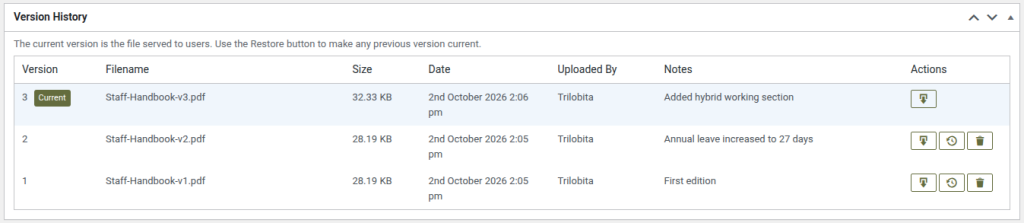
The Version History metabox shows:
- Version number
- Filename
- File size
- Upload date
- Who uploaded it
- Version notes
Pro: Unlimited version history with no automatic deletion. See Pro version history.
Frontend Display
Document Block (Gutenberg)
Add a single document with download button using the block editor:
- In the block editor, click + to add a block
- Search for “DocVault”
- Search for the document by title and select it
- Configure display options in the sidebar
Block options:
- Layout: Full or Minimal
- Show file icon
- Show file info (type, size)
- Show view button (PDF and images)
- Show description
- Show download count
The Minimal layout shows only one toggle, Show file type badge.
Pro: Adds Card and Button block layouts. See Pro block layout options.
Document Table Shortcode
Display a searchable, sortable table of documents:
[trdv_list]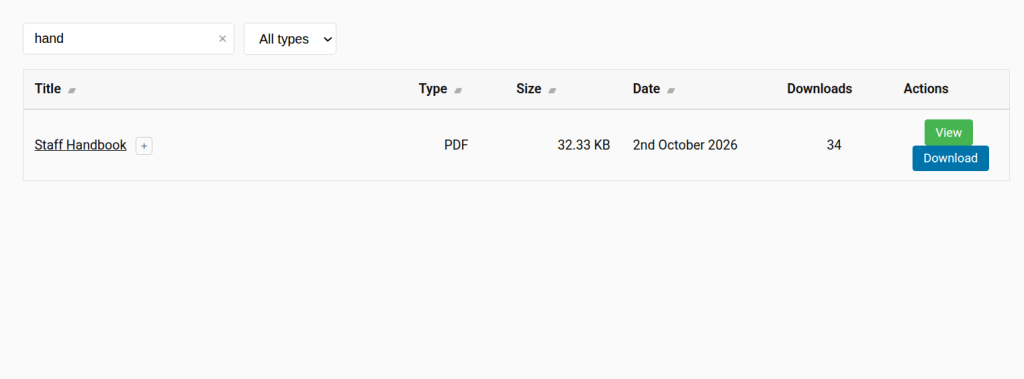
Parameters
| Parameter | Description | Default |
|---|---|---|
category | Filter by category slug | (all) |
tag | Filter by tag slug | (all) |
type | Filter by file type (pdf, docx, etc.) | (all) |
orderby | Sort by: date, title, size, or menu_order (your drag-and-drop order) | date |
order | ASC or DESC | DESC (ASC for menu_order) |
show_search | Show search box | true |
show_category_filter | Show a category dropdown | false |
show_tag_filter | Show a tag dropdown | false |
show_type_filter | Show a file type dropdown | false |
show_download | Show Download button | true |
show_view | Show View button for PDF and image files | true |
show_count | Add a Downloads column | false |
show_expired | Include documents past their expiry date | false |
columns | Columns to show: title,type,size,date | title,type,size,date |
per_page | Documents per page | 20 |
Examples
[trdv_list type="pdf" orderby="title" order="ASC"]

[trdv_list category="reports" show_search="false" columns="title,date"]

[trdv_list per_page="10" show_download="true"]

[trdv_list orderby="menu_order"]

[trdv_list show_category_filter="true" show_tag_filter="true"]
Inline Document Link
Insert a download link within text:
[trdv_link id="123"]Download the report[/trdv_link]Parameters:
id(required) – The document IDnew_tab– Open in new tab: true/false (default: false)class– Add custom CSS class
If no link text is provided, the document title is used:
[trdv_link id="123"]Viewing Documents in the Browser
PDF files (and image files, if you allow them with Pro) get a View button that opens the file in a new browser tab instead of downloading it. Access control still applies, and views are not counted as downloads. Hide the button with [trdv_list show_view="false"], or with the Show view button toggle in the Document block.
Query Loop Block
Documents can be chosen as the post type in WordPress’s core Query Loop block, so you can build your own document layouts in the block editor. Linking the title takes visitors straight to the download. Expired documents and documents the visitor cannot access are not shown.
Site Search
To show documents in your site’s search results, turn on Include documents in site search in Documents → Settings. Visitors still need permission to open a document.
Access Control
Go to Documents → Settings to configure access control.
Global Settings (Free)
- Public – Anyone can view and download documents
- Logged-in users only – Only registered users can access documents
Minimum Role for Uploads – choose who can upload and manage documents: anyone who can upload files (default), Contributor and above, Author and above, Editor and above, or Administrator only.
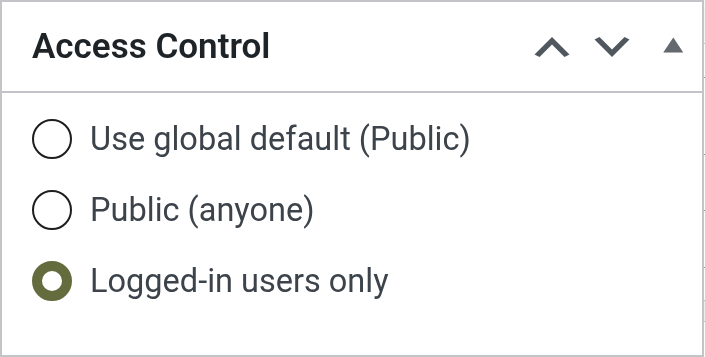
Per-Document Override
On each document’s edit screen, you can override the global setting:
- Use global default
- Public (anyone)
- Logged-in users only
Pro: Role-based access control allows you to restrict documents to specific user roles (e.g., only Editors, only Subscribers). See Pro access control.
Protection Against Direct File Access
Documents are only served through DocVault’s own download and view links, which apply access control and expiry dates. On Apache servers, DocVault blocks direct web access to its upload folder automatically. Nginx ignores these rules, so a server rule is needed. Tools → Site Health tells you if your site needs it and shows the exact rule. See Troubleshooting.
Download Tracking
Download counts are automatically tracked for all documents. View the count in:
- The Documents list (Downloads column)
- The Download Statistics metabox on each document
Pro: Detailed download analytics including who downloaded, when, and download history over time. See Pro download analytics.
FAQ
Where are files stored?
Files are stored in /wp-content/uploads/trdv-documents/. By default they all go in one folder; you can choose a by-ID or by-date structure instead (see below). Files cannot be opened by their direct URL. They are always served through DocVault’s download and view links, which apply access control and expiry dates.
Can I change the upload directory?
Files are always stored in /wp-content/uploads/trdv-documents/, but you can choose the folder structure in Documents → Settings:
- Flat – All files in one folder
- By ID – Organised by document ID
- By Date – Organised by year/month
Note: Folder structure must be chosen before uploading files. It cannot be changed after files have been uploaded.
How do I find a document’s ID?
Edit the document and look at the URL. The ID is the number after post=. For example: post.php?post=123&action=edit
Can I use my own categories?
Yes. In Documents → Settings, you can choose to use WordPress’s built-in categories instead of the separate Document Categories taxonomy.
Is the plugin GDPR compliant?
Yes. The plugin integrates with WordPress privacy tools for data export and erasure. Download logs can be deleted via the WordPress personal data tools.
Can I restrict individual documents to specific users?
Free: You can restrict documents to logged-in users only, either globally or per document. But you cannot restrict to specific individual users.
Pro: Role-based access control lets you restrict documents to specific user roles (e.g., only Editors, only Subscribers). For individual user restrictions, you would need to create a custom role or use a membership plugin alongside.
Does the plugin work with multisite?
Yes, the plugin works on individual sites within a WordPress multisite network. Each site has its own documents and settings. However, there is no network-wide activation or shared document library across sites.
What is the maximum file size?
The plugin uses your WordPress/server upload limit. Check your limit in Media → Add New (shown at the bottom). To increase it, adjust upload_max_filesize and post_max_size in your PHP settings or contact your host.
Can I upload multiple documents at once?
The free version uploads one document at a time. Pro includes bulk upload with duplicate detection.
Can I preview or embed PDFs?
PDFs can be previewed. In the document list, PDF files have a View button that opens the file in the browser’s built-in viewer in a new tab, with access control still applied. Hide the button with [trdv_list show_view="false"]. Embedding a PDF viewer inside a page is not built in.
Can I customise the frontend table styling?
Yes. The document table uses CSS classes prefixed with trdv-. Add custom CSS in Appearance → Customise → Additional CSS to override the default styles.
Is the plugin translation ready?
Yes. A translation template (.pot file) is included. Place your translation files in /wp-content/languages/plugins/ using the text domain trilobita-docvault.
What happens when I uninstall the plugin?
Uninstalling removes plugin settings, post meta, and the download log table. Your documents (posts) and uploaded files are not deleted — you can remove these manually if needed. This protects your data from accidental loss.
Need More Advanced Features?
DocVault Pro adds advanced frontend filters, bulk upload, smart similarity detection, role-based access control, audit logs, download analytics, storage tools, and approval workflow.